How Fellow Channels Turn Scattered Meeting Recordings Into Searchable Team Knowledge
•
5
MIN READ

AI Summary by Fellow
Most teams record more meetings than they ever watch. The recordings pile up in a shared library, undifferentiated and unsearchable, until someone needs to find "that conversation from three weeks ago about the Q3 roadmap" and spends 20 minutes scrolling through calendar entries to locate it.
That's not a storage problem. It's an organization problem, and it has a straightforward fix.
Fellow solves this with a feature in its recording library called Channels. Channels transform how your team stores, accesses, and extracts value from meeting content. Instead of one flat list of recordings, you get curated, auto-populated folders that route the right meetings to the right people automatically, with controls over who is allowed to put content where.
What are Channels in Fellow?
A Channel is a curated folder for your meeting recordings, similar in concept to a playlist or a shared drive folder, but with two critical differences: Channels can populate themselves automatically based on rules you configure, and each Channel has its own membership and its own permissions. Channels auto-route your AI meeting notes, summaries, and transcriptions to the right folders, so there's no manual sorting after each call.
Instead of manually sorting through dozens of recordings after every week of calls, you can create a Channel once, set your automation rules, and let Fellow handle the routing. Your customer interview recordings flow into the Customer Interviews Channel. Your all-hands recordings flow into the Company Channel. Your one-on-one recordings flow into a private Channel only you and your manager can see.
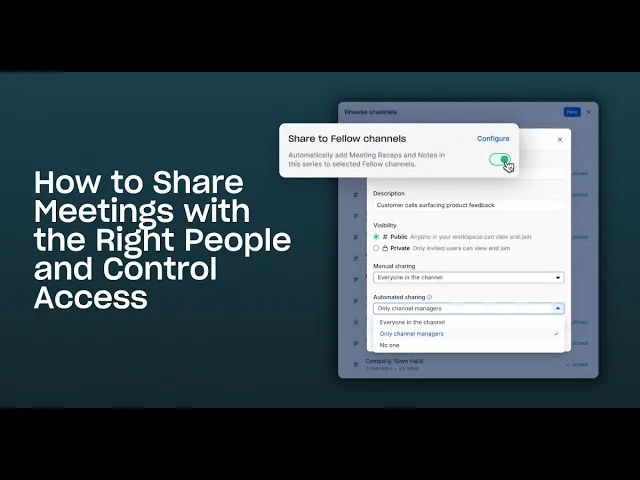
Every Channel is either public (visible to everyone in your workspace, and browsable so people can find and join it themselves) or private (invite-only, and invisible to everyone else). It's worth noting that posting a recording to a Channel grants every member of that Channel access to it, on top of whatever permissions the recording already had. For example, a one-on-one recording shared to a public Company Channel becomes visible to everyone in that Channel, so it's important to start with the right visibility setting from the beginning.
But, sharing a recap into a Channel requires edit permission on that recap, so if a colleague shared a recording with you read-only, you can't route it into a Channel.
How does Channel management control who can post?
The great thing about recording Channels in Fellow is that they give you full control over who can share what, and when.
Channel managers
Any member can be promoted to channel manager. Managers run the Channel, which means they manage membership, change its settings, and remove posts, without needing workspace admin rights. The team that owns the content owns the Channel.
Manual and automated sharing permissions
Every Channel controls manual sharing and automated sharing separately, and each can be set to Everyone in the channel, Only channel managers, or No one.
The two being separate means that a Customer Interviews Channel can let everyone drop in a call they think matters, while restricting automatic firehose routing to managers. A board archive can allow neither.
"No one" means no one. Not members, not channel managers, not workspace admins. It's the setting for a Channel that has to stop receiving content entirely, and it removes the Channel from every sharing picker in the product.
Default Channels
A workspace admin can designate a Channel as a default, and everyone in the workspace joins it automatically, including people who join the company later. The all-hands Channel doesn't depend on anyone remembering to invite the new hire.
Workspace-level visibility and the audit log
Admins get a Channels page in workspace settings listing every Channel in the workspace, so governance doesn't depend on hunting through the library. Workspace settings also carry a single control that switches off auto-publishing to Channels for every user at once.
Every change is on the audit log. Channel created, renamed, description changed, visibility flipped, members added or removed, manager promoted, Channel deleted, each is recorded as an auditable event in the workspace security audit log. "Who gave them access to the recordings, and when" has an answer you can export.
The Channel detail modal is where most of this lives day to day: an About tab, a Members tab, and a Settings tab holding the two permission settings, the list of auto-share rules pointing at the Channel, a public/private switch, and options to copy member names or emails.
Channels for regulated and compliance teams
For teams in finance, legal, and other regulated industries, Channel permissions and the audit log double as governance controls, not just organizational ones. Every audit log entry records who created, renamed, or deleted a Channel, and who was added to or removed from it, giving compliance teams a defensible record of who had access to which recordings and when.
Setting a Channel's sharing permissions to "No one" freezes it in place: nothing new can be added, by hand or by automation, which makes it a clean way to close and archive sensitive content once a review period ends.
Private Channels keep sensitive discussions, such as board meetings, legal reviews, or strategic planning sessions, visible only to the people who need them, separate from the rest of the organization's recording library.
Together, these controls let compliance and legal teams supervise how meeting recordings are shared and retained without slowing down the teams that rely on Channels day to day.
How do you automate which meeting recordings flow into each Channel?
Creating a Channel is the easy part. The real leverage comes from automation, so recordings, AI meeting notes, and summaries route themselves without anyone having to remember to do it manually.
Fellow offers three levels of automation, ranging from broad to precise.
User-level settings: set it once for all your meetings
User-level automation routes all your recordings automatically, with separate destinations for internal and external meetings. To configure it, go to Settings > Note Taker, toggle on "Auto-share recaps to a channel," and choose separate Channels for external recordings (calls with people outside your email domain) and internal recordings (calls with colleagues).
This is a user-level setting, meaning it only affects your meetings. Your configuration does not change what happens to your teammates' recordings.
The internal/external split is the setting most worth taking seriously. It resolves the tension every team runs into: "I want my team to see customer calls, but not our internal ones," with one configuration, once.
Series-level automation: for recurring meetings
Series-level automation routes every future instance of a recurring meeting to a Channel automatically. To configure it, open any instance of the series, go to Settings > Automations, and select the destination Channels. You configure it once, and Fellow handles the rest going forward.
One-off sharing: for individual instances
Sometimes you want to share a single meeting without affecting the rest of the series. Open the meeting recap, click the share icon, and type the Channel name. That instance routes to the Channel. Nothing else changes.
It's worth noting that automation rules apply to future meetings only, so if you want historical recordings in a Channel, add them manually by opening each recording and sharing it. Also, a Channel's permissions win over your automation. This means Channels you aren't allowed to publish into don't appear as destinations, and a rule pointing at a Channel whose permissions later tighten simply stops delivering.
How do you use filters to find what you need?
Once a Channel has content, filters help you zero in on exactly what you're looking for without scrolling through everything. You can filter by:
Participation and attendees: narrow to meetings you attended, or to recordings that include a specific person
Company: for external-facing Channels, filter by customer domain
Date: focus on the past week, month, or a custom range
Content type: view only recordings, clips, notes, or a combination
Filters become especially valuable as a Channel grows. A Customer Interviews Channel with six months of calls is hard to navigate without them. With filters, you can pull every call from a specific account in seconds.
How do you create clips instead of sharing full recordings?
Not every moment worth sharing requires sharing an entire recording. Fellow lets you extract specific segments as clips and share those to Channels directly.
To create a clip, open a meeting recap, click the scissor icon at the top of the recording, drag the timeline to your desired segment or enter specific start and end times, name the clip, and share it to a Channel from the popup.
Clips are particularly useful for:
Sales coaching: extract moments where someone handled an objection well and route them to a coaching Channel
Product feedback: pull specific customer comments about a feature into a Product Feedback Channel
Onboarding: build a library of best-practice examples without burying new hires in full recordings
Leadership updates: share a key decision from an exec meeting without requiring full attendance at the recording
Clips respect your team's time. Share the 90 seconds that matter, not the 60-minute call.
How do you get notified about new Channel activity?
If you need to stay current on a Channel without actively checking it, you can watch it. Watching a Channel notifies you whenever a new recording is added, by email or push notification depending on your notification preferences (both are configurable per person in settings), so you can take Channel activity as a push on your phone and nothing in your inbox, or the reverse.
To watch a Channel, select it from your library, open the three-dot menu, and select "Watch channel." Watching is opt-in per Channel. It is not enabled by default, which is intentional: if you're on a sales team where every rep is recording daily calls, watching every Channel would create significant inbox noise.
Watch selectively. Leadership updates Channels, company all-hands Channels, and customer feedback Channels where you need immediate awareness are good candidates. For everything else, an unread marker next to a Channel name flags new content you haven't viewed yet, giving you at-a-glance awareness without email noise.
How does Ask Fellow analyze a Channel's content?
This is where Channels move from "nice organizational system" to genuinely powerful intelligence infrastructure.
Ask Fellow, Fellow's AI query layer, works throughout the platform. But when you open Ask Fellow inside a specific Channel, it scopes its analysis to that Channel's contents automatically. Instead of querying your entire meeting history, you're querying only the meetings that belong to that context.
That scoping makes the queries dramatically more useful. Inside a Customer Interviews Channel, you can ask:
"What were the most common blockers customers mentioned last month?"
"Summarize the feature requests that came up in calls this week"
"What concerns have been raised in this Channel in Q1?"
Ask Fellow synthesizes answers across multiple recordings simultaneously, which means you get the aggregated insight without watching hours of content or reviewing transcripts manually. Ask Fellow can synthesize patterns across AI meeting notes and transcriptions stored in a Channel, not just the raw recordings themselves.
Ask Fellow can also work with Channels directly rather than only reading from them. Ask it to create a Channel, add or remove members, or tell you which Channels exist and which ones you're allowed to post into, and it does the setup conversationally. It can also draft clips from a recording on request: describe the moment you want and it finds the segment and shows you the transcript before anything is created.
If your team asks the same Channel-level question on a recurring basis, you can save it as a custom shortcut and run it with one click each week.
How do different teams use Channels?
Channels are flexible enough to serve almost any function, but here are the patterns that show up most consistently across high-volume recording environments:
Client-facing teams
Route all external calls automatically to a Customer Interviews Channel
Curate a Coaching Channel with clips of strong objection handling and closes, with manual sharing open to the whole team and automated sharing restricted to managers
Create a Competitive Intelligence Channel to track competitor mentions across customer calls
Product teams
Collect customer feedback from customer-facing teams into a Product Feedback Channel
Track feature requests in a dedicated Channel to inform prioritization
Organize user research sessions by theme or product area
HR and people teams
Build an Onboarding Channel with training content and best-practice examples, set as a default Channel so every new hire is already in it
Archive town halls and all-hands recordings in a Company Channel
Keep one-on-one conversations in private Channels with restricted membership
Executive teams
Maintain sensitive strategic discussions in private Channels
Build a board meeting archive with posting set to "No one" once the quarter closes, so the archive cannot be added to by anyone
Organize quarterly planning recordings separately from operational meeting content
Financial services teams
Route client advisory and suitability calls automatically to a Client Interactions Channel, so supervisors have a single place to review conversations for regulatory purposes
Archive investment committee and deal review meetings in a private Channel, then set posting to "No one" once a decision is finalized to close the record for audit
Keep compliance training and policy walkthroughs in a default Channel so every new advisor or analyst has immediate access from day one
Build a Client Onboarding Channel that captures KYC and account-opening calls separately from ongoing servicing conversations, making it easier to produce the right record if a regulator asks for it
Frequently asked questions
What are Channels in Fellow?
Channels are curated, automated folders within Fellow's recording library that organize meeting recordings, AI meeting notes, and transcriptions by topic, team, client, or any other criteria you define. Unlike static folders, Channels auto-populate based on rules you configure, so recordings route to the right place without manual sorting after every call.
Who can add recordings to a Channel?
Each Channel has two settings, one for manual sharing and one for automated sharing, and each can be set to everyone in the Channel, only channel managers, or no one. Channel managers are members promoted to run the Channel: they manage membership and settings and can remove posts without being workspace admins. Sharing a recap into a Channel also requires edit permission on that recap.
How do I automatically route meetings to a Channel in Fellow?
Fellow's three levels of automation are user-level settings that route your internal and external recordings automatically, series-level automation that applies a rule to every future instance of a recurring meeting, and one-off sharing for a single meeting instance. All automation rules apply to future meetings only, and a Channel's permissions determine whether it can be selected as a destination at all.
Can an admin make sure everyone is in the right Channel?
Yes. A workspace admin can mark a Channel as a default, and every person in the workspace joins it automatically, including people who are added to the workspace later. Admins also get a Channels page in workspace settings listing every Channel in the workspace.
Can I use AI to analyze the content of a specific Channel?
Yes. Ask Fellow scopes its analysis to a specific Channel, so you can ask natural-language questions about recordings in that context, for example, "What themes came up in customer calls this month?"
What's the difference between public and private Channels in Fellow?
Public Channels are visible to everyone in your workspace and can be browsed and joined. Private Channels are invite-only and only appear for members you've added. Posting a recording to a Channel grants every member access to it, so it's important to set the right visibility when you create a Channel. A recording shared to a public Channel becomes accessible to all Channel members, regardless of the original recording's permissions.
Are Channel permission changes tracked?
Yes. Creating, renaming, or deleting a Channel, changing its description or visibility, adding or removing members, and promoting a channel manager are all recorded as auditable events in the workspace security audit log.
Can I share just part of a recording instead of the whole AI meeting recording?
Yes. Fellow's clip feature lets you extract a specific segment of a recording, name it, and share it directly to a Channel. Clips respect the same permissions as full recordings and are logged in the audit trail. This is particularly useful for coaching content, onboarding libraries, or sharing a key decision without distributing the full meeting.
The meetings you're already recording deserve a better system
The information is already there. Every customer call, every leadership discussion, every product review session is captured and waiting. The question is whether your team can find it, learn from it, and act on it.
Channels close that gap. They turn a passive recording library into an active intelligence system where the right meetings reach the right people automatically, where the people who own the content control who can add to it, where AI can surface patterns across hundreds of calls in seconds, and where your team spends time using meeting content instead of searching for it.
Stop letting recordings pile up unseen. Try Fellow free and set up your first Channel today.
Record, transcribe and summarize every meeting with the only AI meeting assistant built with privacy and security in mind.


